R and RStudio
In this class, we will use R and RStudio for data analysis, visualization, and reports. R is the statistical software, while RStudio is an environment that makes it easy to manage and use that software. Below are instructions for installing R and RStudio (steps 1–5). Please email me if you have any questions or issues!
Install R: go to this link, and choose the download option for your operating system.
a. Windows: Click Download R for Windows, then click the install R for the first time button.
b. macOS: Click Download R for macOS. Under Latest release, choose the package corresponding to your macOS version.
c. Linux: Click Download R for Linux, then select your distro and follow the installation instructions (you will install via the command line).
- Install RStudio: go to this link, and scroll down to “All Installers and Tarballs”. Download the version corresponding to your computer’s OS.
- Open RStudio (the icon is a white R in a blue circle). You should see something like the following:
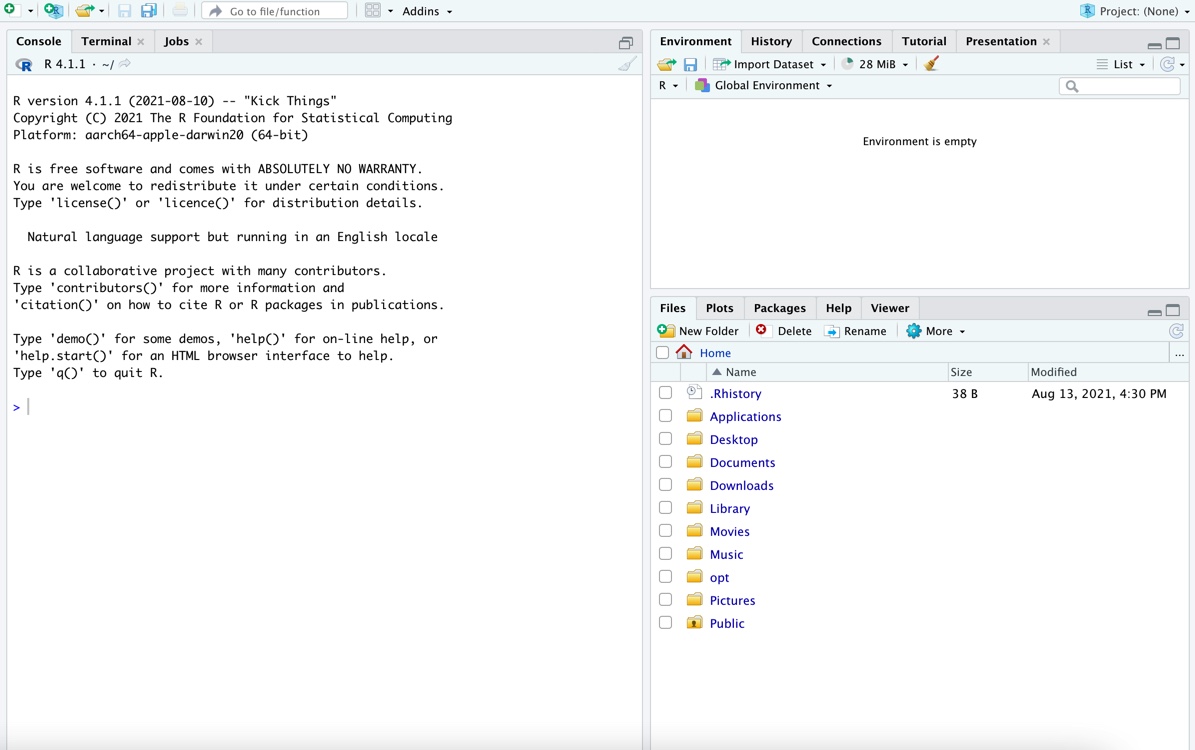
- We’ll get acquainted with RStudio in class. For now, let’s just check that it works. In the Console, next to the
>, type16 * 7and hit Enter (or return on Mac). You should get112. - Finally, we’ll do one more setup step. In the console, copy and paste the following lines of code, and hit enter.
install.packages("tinytex")
tinytex::install_tinytex()
It may take a few minutes to run. If using macOS, you may need to enter your password in the installation process.
Contact Dr. Evans if you encounter any issues with software installation.